Product Lab Showcase
QuickAccess
Android floating overlay tool for fast device actions, volume control, and screen locking.
- Tech Stack
- FlutterDartKotlinAndroidRiverpodSharedPreferencesPlatform Channels
- Project Type
- Personal Product Lab
Product Concept
How it works & why I built it
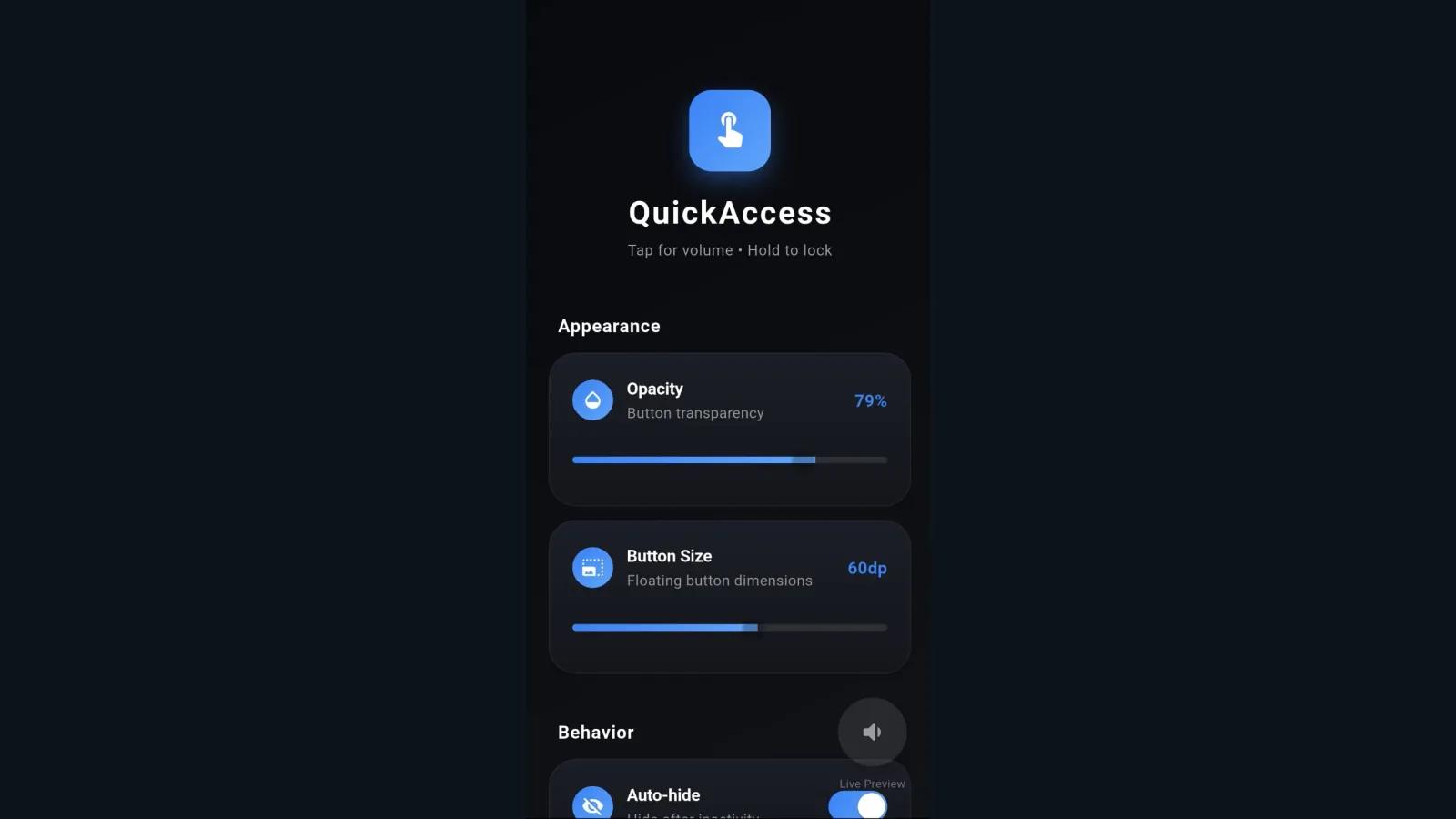
A Flutter and Kotlin hybrid Android app that provides quick access to essential device actions through a persistent floating overlay button and a polished glassmorphism settings UI.
My Role & Engineering Scope
Mobile product concept, Flutter UI, Kotlin platform integration, overlay service architecture, permission flow, settings persistence, and Android release preparation.
Problem
Common Android actions like volume adjustment and screen locking can require repeated gestures or hardware buttons that are not always convenient.
Concept
QuickAccess provides a small persistent control surface that stays available across apps while keeping customization and permissions understandable.
Built
- Flutter settings experience with glass cards, sliders, toggles, dropdowns, and live preview.
- Kotlin foreground overlay service using WindowManager for lifecycle, position, gestures, and animation.
- Platform channel bridge connecting Flutter state with native Android actions.
Product Highlights
- Always-accessible floating overlay button with drag, snap, and auto-hide behavior.
- Configurable tap and long-press actions for volume control and device locking.
- Clear permission onboarding for overlay and Device Admin requirements.
Key Features
Floating Overlay Button
A persistent system overlay gives users quick access to chosen device actions from anywhere.
The core action stays available without forcing the user back into the app.
Volume and Lock Actions
Tap behavior can control volume or show a panel, while long press can lock the screen through Device Admin.
The tool focuses on practical device actions that benefit from fast access.
Customizable Overlay Behavior
Users can tune opacity, size, auto-hide delay, edge snapping, and persistent button position.
The overlay can adapt to different screen sizes, habits, and visual preferences.
Permission Onboarding
The app explains and requests overlay and Device Admin permissions during first launch.
Sensitive Android permissions need a clear user-facing rationale before activation.
UX Decisions
- Used a dark glassmorphism settings interface to make a system utility feel polished rather than raw.
- Provided a live floating button preview so users can understand size and opacity changes immediately.
- Separated required overlay permission from optional Device Admin permission for the lock action.
- Made drag, snap, and auto-hide behavior configurable instead of hardcoded.
Engineering Decisions
- Used Flutter for the product UI and Kotlin for native overlay, gesture, and device action behavior.
- Kept settings persisted locally with SharedPreferences through a typed settings model.
- Separated overlay lifecycle, position storage, gesture classification, edge snapping, and animation into native components.
- Documented production signing and credential handling so release builds avoid committed secrets.
Challenges
- Coordinating Flutter state with native Android services through platform channels.
- Handling sensitive permissions without making the onboarding flow confusing.
- Making a persistent overlay feel useful without becoming visually intrusive.
Outcome
Built a practical Android utility that combines native system integration with a polished Flutter settings experience.